If files will leave your team, metadata cleanup should be a fixed pre-delivery step. This prevents hidden fields from leaking internal authoring context.
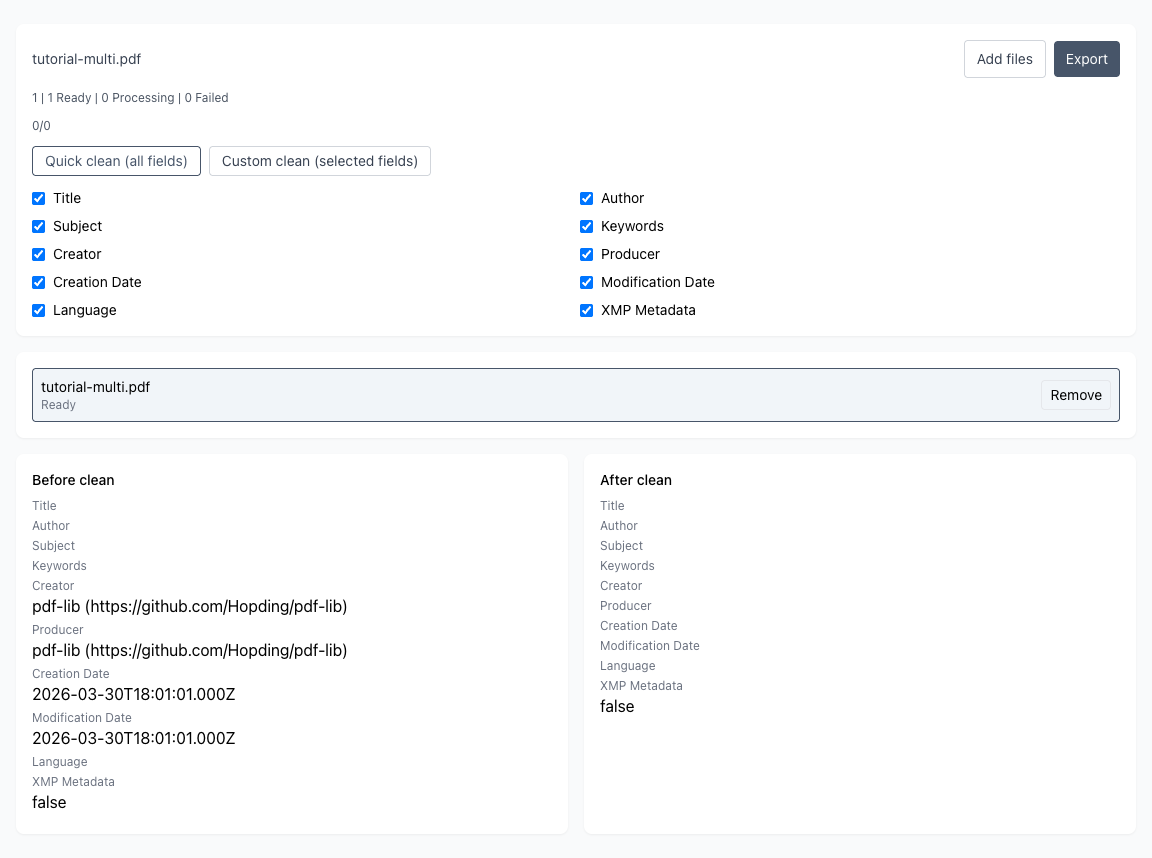
Remove hidden PDF metadata before sharing or archiving.
Drag or click to add PDFs. Processing stays in your browser with no upload.
Drag multiple PDFs here or click to select
Merge multiple PDF files instantly
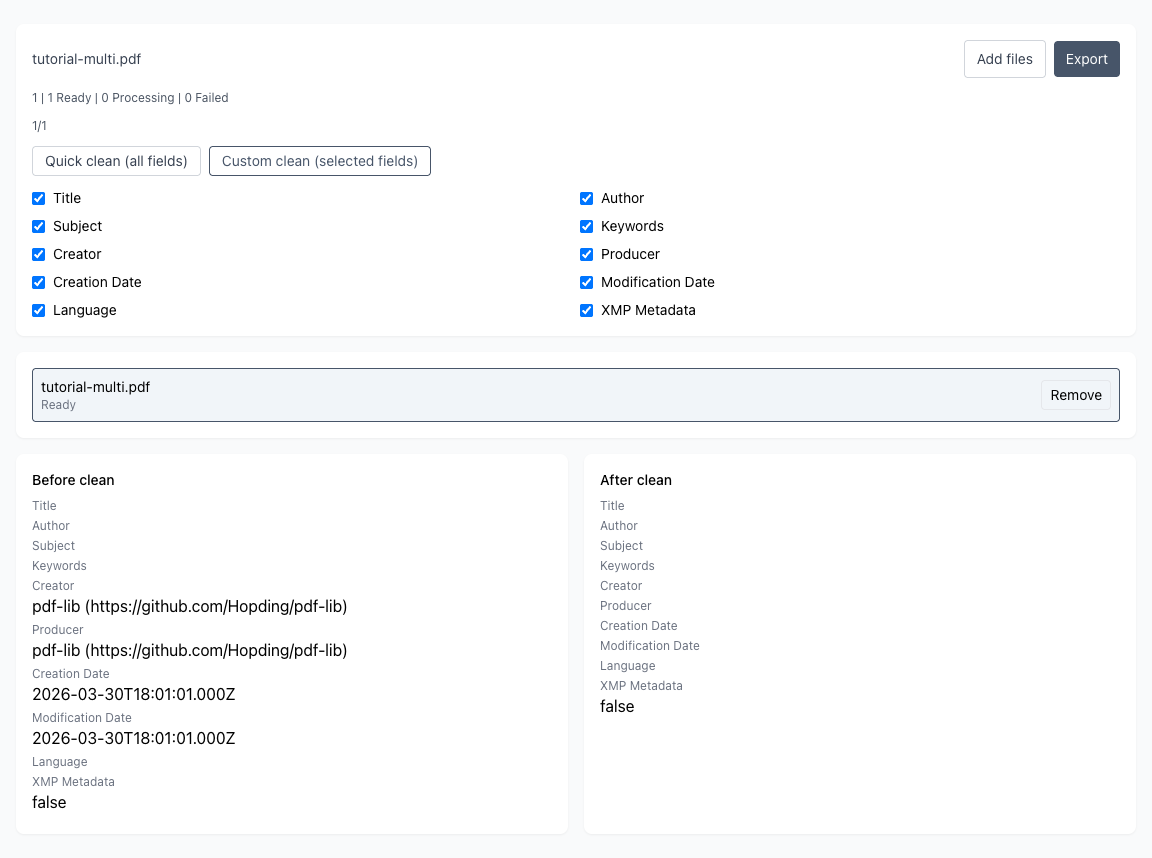
See before/after metadata differences first, then choose quick clean or custom clean with confidence.
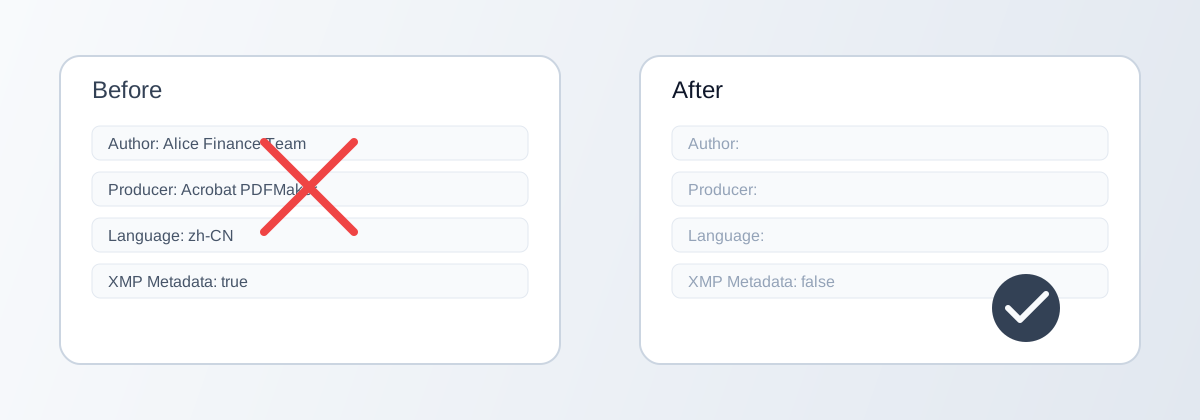
Author, Producer, Language, and XMP may reveal source systems and internal collaboration traces.
Sensitive metadata fields are removed by policy while visible page content remains unchanged.
Remove Title, Author, Language, XMP and other fields before sharing sensitive files.
Use one-click full cleanup or keep selected fields with explicit control.
Process multiple PDFs in one run and export as PDF or ZIP with traceable names.
Everything runs in-browser for privacy-focused teams and compliance scenarios.
If files will leave your team, metadata cleanup should be a fixed pre-delivery step. This prevents hidden fields from leaking internal authoring context.
Add files in batch and confirm filenames before processing. You can continue adding files later in the workbench when new documents arrive.
Use quick clean when your rule is remove everything supported. Use custom clean when you must keep selected fields for internal workflow constraints.
Check high-risk fields such as Author, Creator, Producer, Language, and XMP. This step helps avoid accidental over-cleaning or under-cleaning.
Single file exports as PDF, multiple files export as ZIP. If some files fail, download successful results first and retry only failed items.
Why should I clean metadata if page content is already correct?
Will my files be uploaded?
When should I choose quick clean vs custom clean?
Can I remove only selected fields such as Author and Producer?
Can I continue adding files after entering workbench?
What happens if some files fail in a batch?
Why is before/after preview important?
How are multiple files exported and named?
Visual Tutorial
Follow the key states from import to export, then repeat the same flow on the page.
Every highlighted step stays in your browser. Files are processed locally and are not uploaded to a server.
If files will leave your team, metadata cleanup should be a fixed pre-delivery step. This prevents hidden fields from leaking internal authoring context.
Add files in batch and confirm filenames before processing. You can continue adding files later in the workbench when new documents arrive.
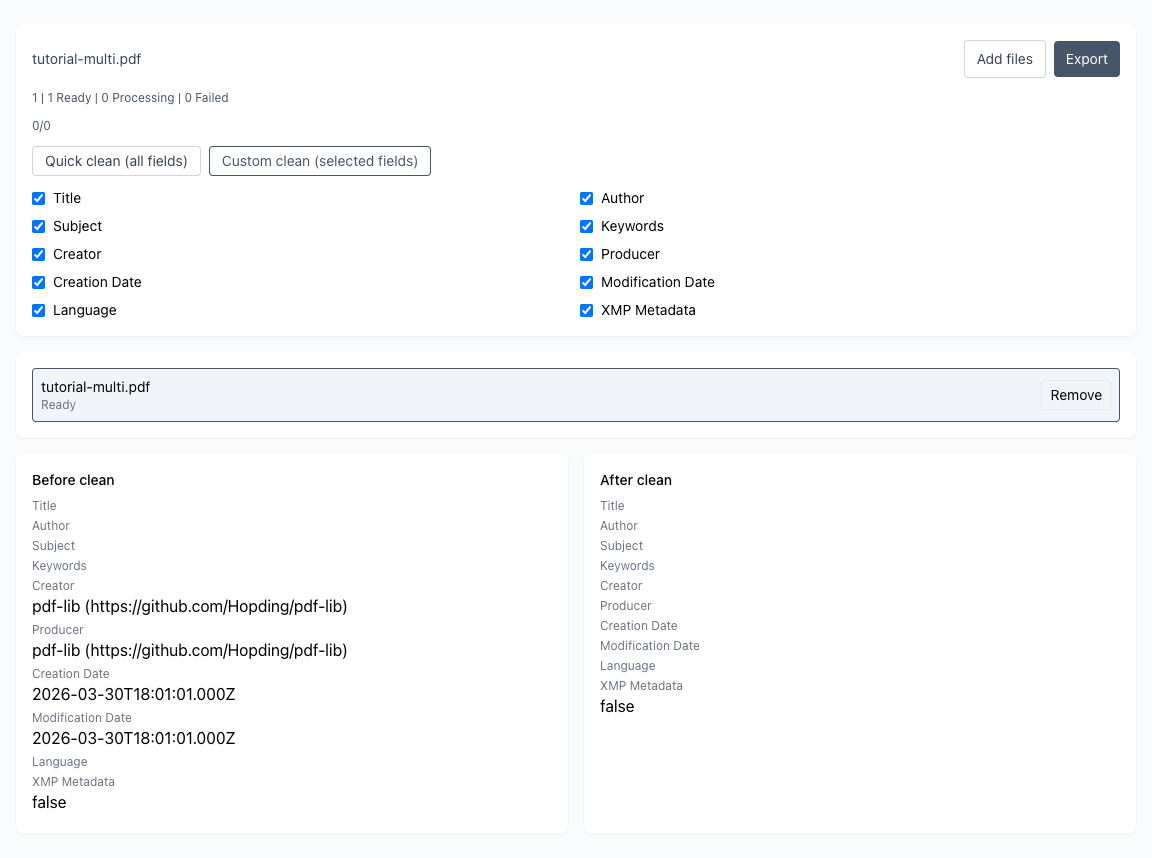
Run PDF Metadata Clean locally in your browser. Files are not uploaded to any server during this step.
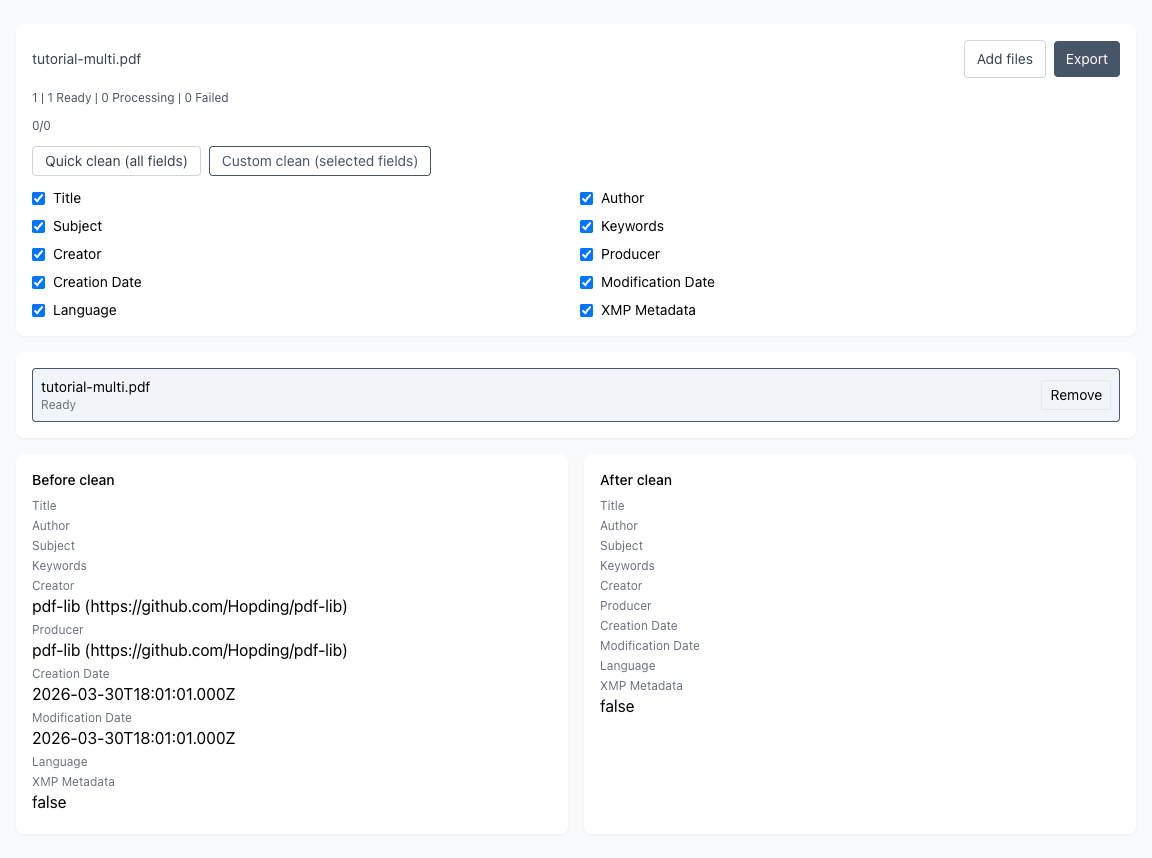
Single file exports as PDF, multiple files export as ZIP. If some files fail, download successful results first and retry only failed items.
Another PDF workflow tool for continuous document processing.
Another PDF workflow tool for continuous document processing.
Another PDF workflow tool for continuous document processing.
Another PDF workflow tool for continuous document processing.