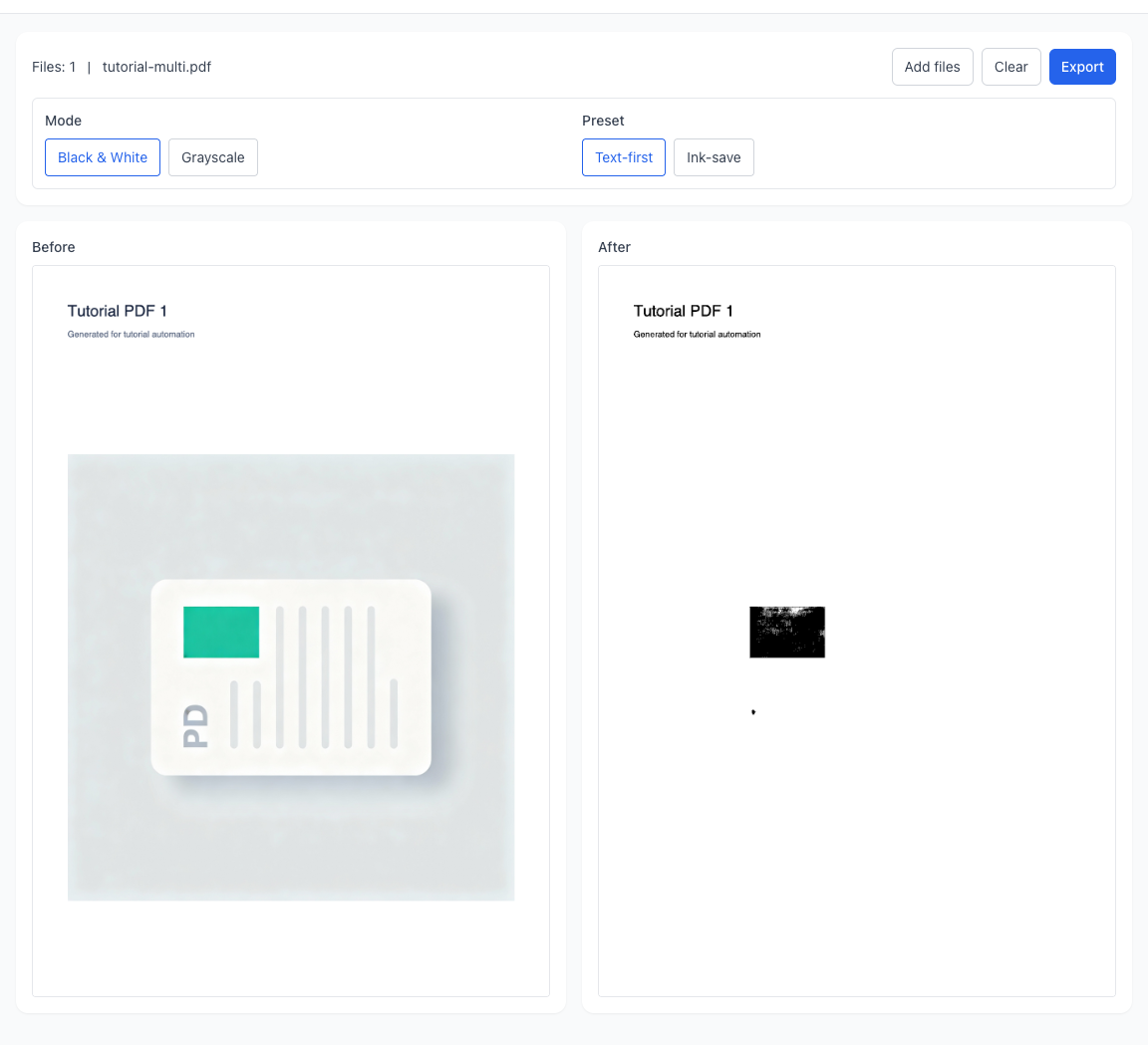
If your priority is clearer letters and fewer broken strokes, start with text-first. If your priority is lower print cost and less dark area, start with ink-save. Choosing by goal prevents trial-and-error.
Scans look gray, text looks weak, and printing costs keep rising? Use a goal-driven workflow to improve readability and printing cost across multiple PDFs in one run.
Drag or click to add PDFs (multiple files supported). Processing stays in your browser with no upload to servers.
Drag multiple PDFs here or click to select
Merge multiple PDF files instantly
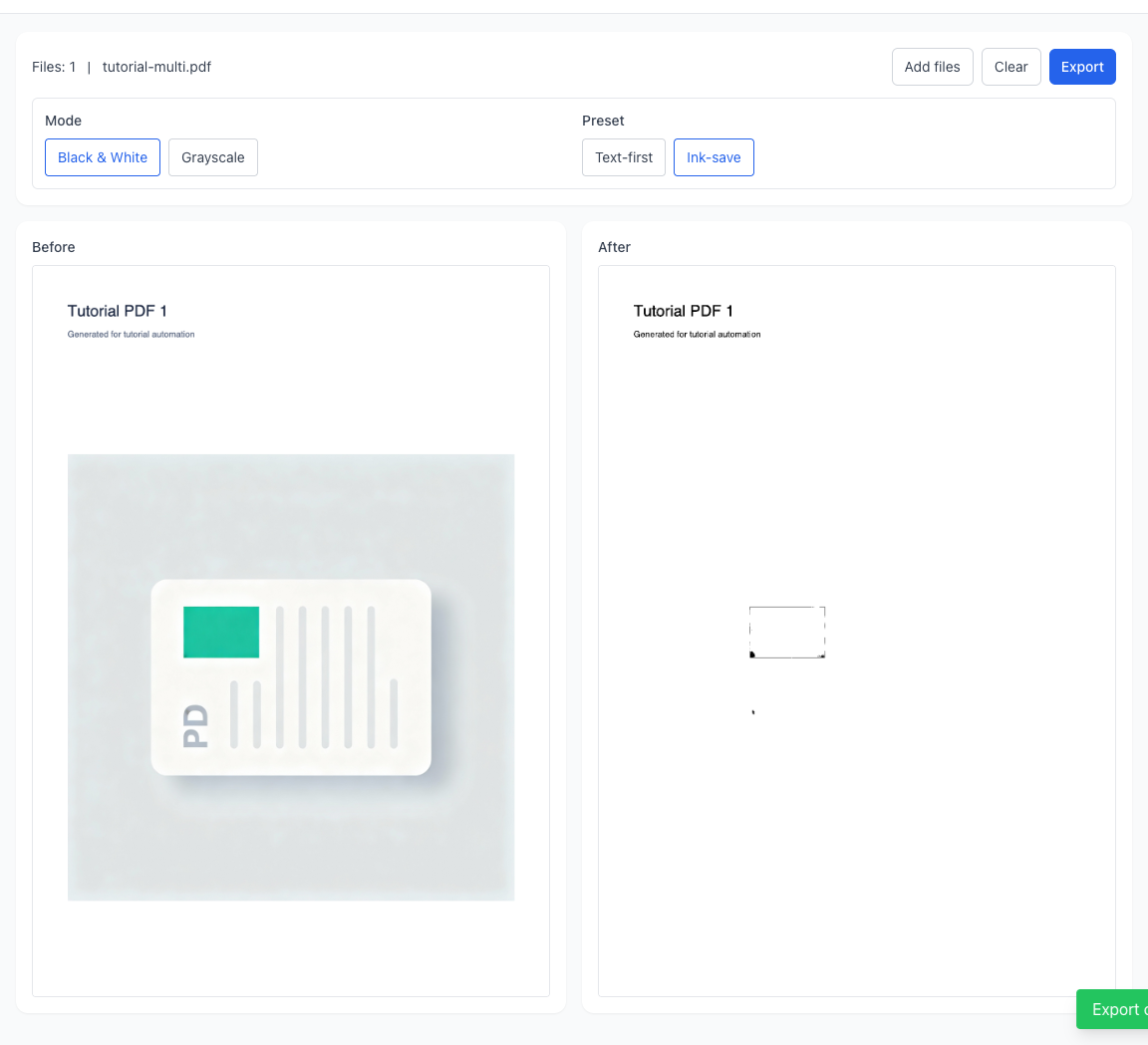
Review before/after differences first, then choose black and white or grayscale, plus text-first or ink-save, with confidence.
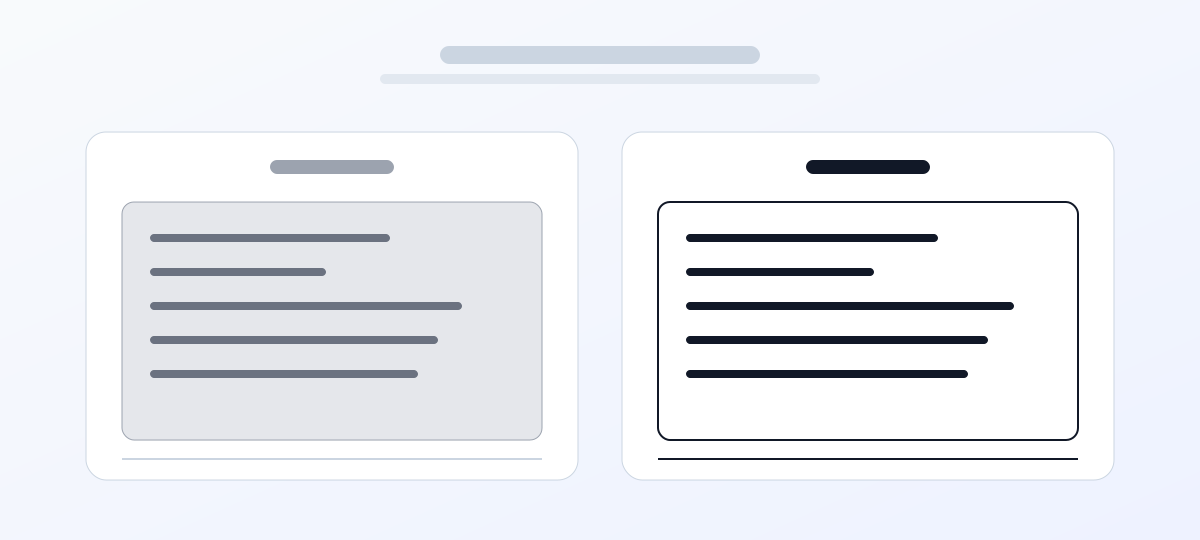
Gray background, weak contrast, and fuzzy text edges that often look worse after printing.
Cleaner pages and clearer text for better readability, printing, and archival workflows.
Many scanned PDFs keep gray noise in the background. They can still look acceptable on screen, but turn muddy on paper. Binarize can increase contrast so body text is easier to read, review, and archive.
When you print reimbursement files, meeting packs, lecture notes, or contract appendices, dark backgrounds quickly increase toner usage. The ink-save strategy reduces dark coverage while keeping practical readability.
In approval, reimbursement, bid, and archive workflows, low-contrast files are often rejected. Preprocessing with black-and-white or grayscale optimization reduces rework caused by unreadable scans.
Different documents need different treatment. Combine black and white or grayscale with text-first or ink-save, check preview first, and export the version that matches your real task goal.
If your priority is clearer letters and fewer broken strokes, start with text-first. If your priority is lower print cost and less dark area, start with ink-save. Choosing by goal prevents trial-and-error.
Black and white usually fits text-heavy scans, archive copies, and photocopies. Grayscale is better when you still need tonal details such as seals, textured backgrounds, or image blocks.
Text-first focuses on stroke continuity and shape integrity for small fonts. Ink-save reduces dark fill for high-volume printing or cost-sensitive workflows. Neither is universally better; it depends on your task.
Check a few typical pages first, then run full batch export. This avoids reprocessing large sets after discovering that the selected parameters are not suitable.
A single source file exports as PDF for immediate submission. Multiple source files export as ZIP for simpler handoff and archive management with source-based naming.
When should I choose text-first?
When should I choose ink-save?
How do I choose between black and white and grayscale?
Do you upload my PDF files to a server?
What if some files fail during batch processing?
Why does optimization look weak on some pages?
Are encrypted PDFs supported?
Who benefits most from this tool?
Visual Tutorial
Follow the key states from import to export, then repeat the same flow on the page.
Every highlighted step stays in your browser. Files are processed locally and are not uploaded to a server.
If your priority is clearer letters and fewer broken strokes, start with text-first. If your priority is lower print cost and less dark area, start with ink-save. Choosing by goal prevents trial-and-error.
Black and white usually fits text-heavy scans, archive copies, and photocopies. Grayscale is better when you still need tonal details such as seals, textured backgrounds, or image blocks.
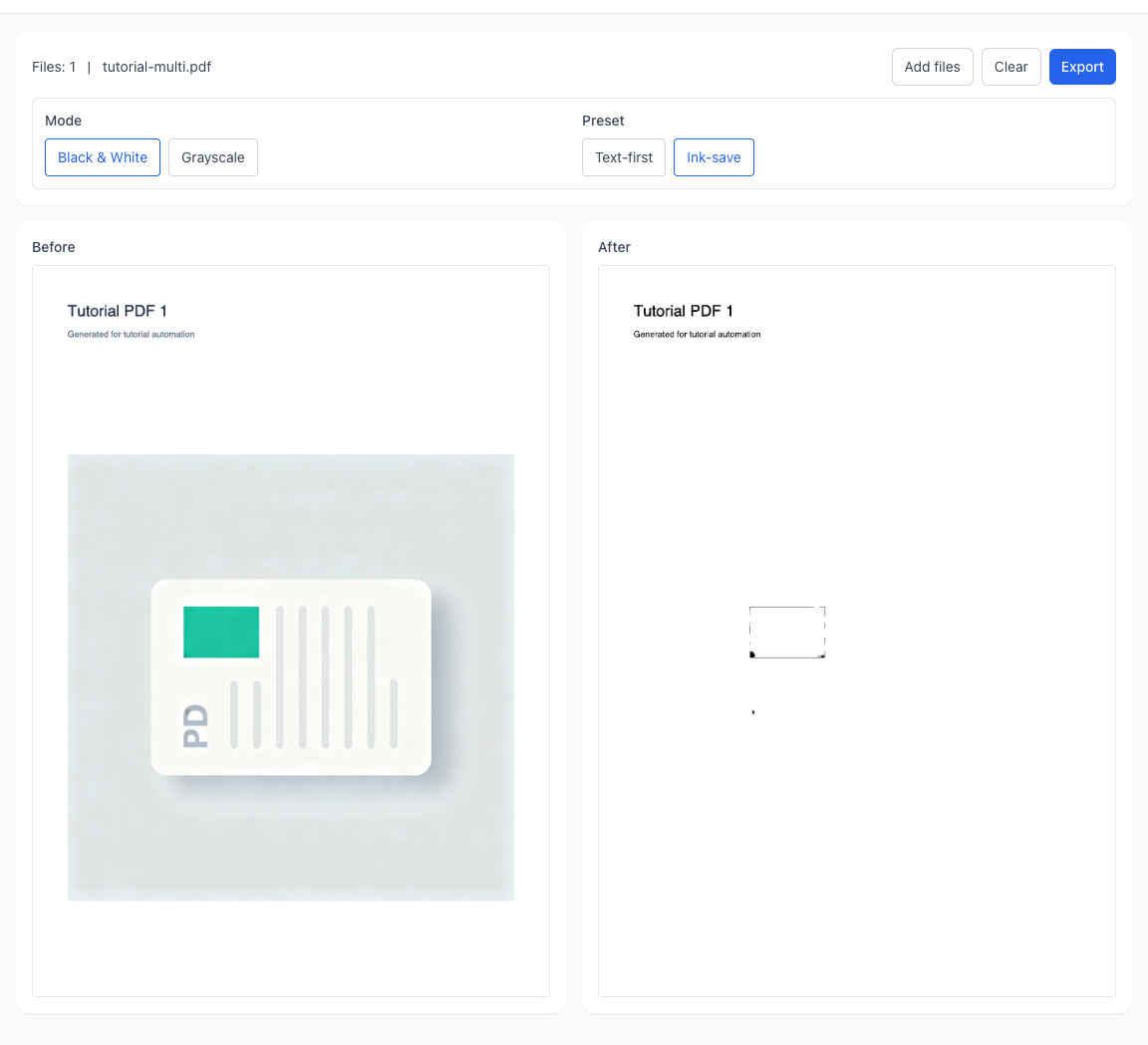
Run PDF Binarize locally in your browser. Files are not uploaded to any server during this step.
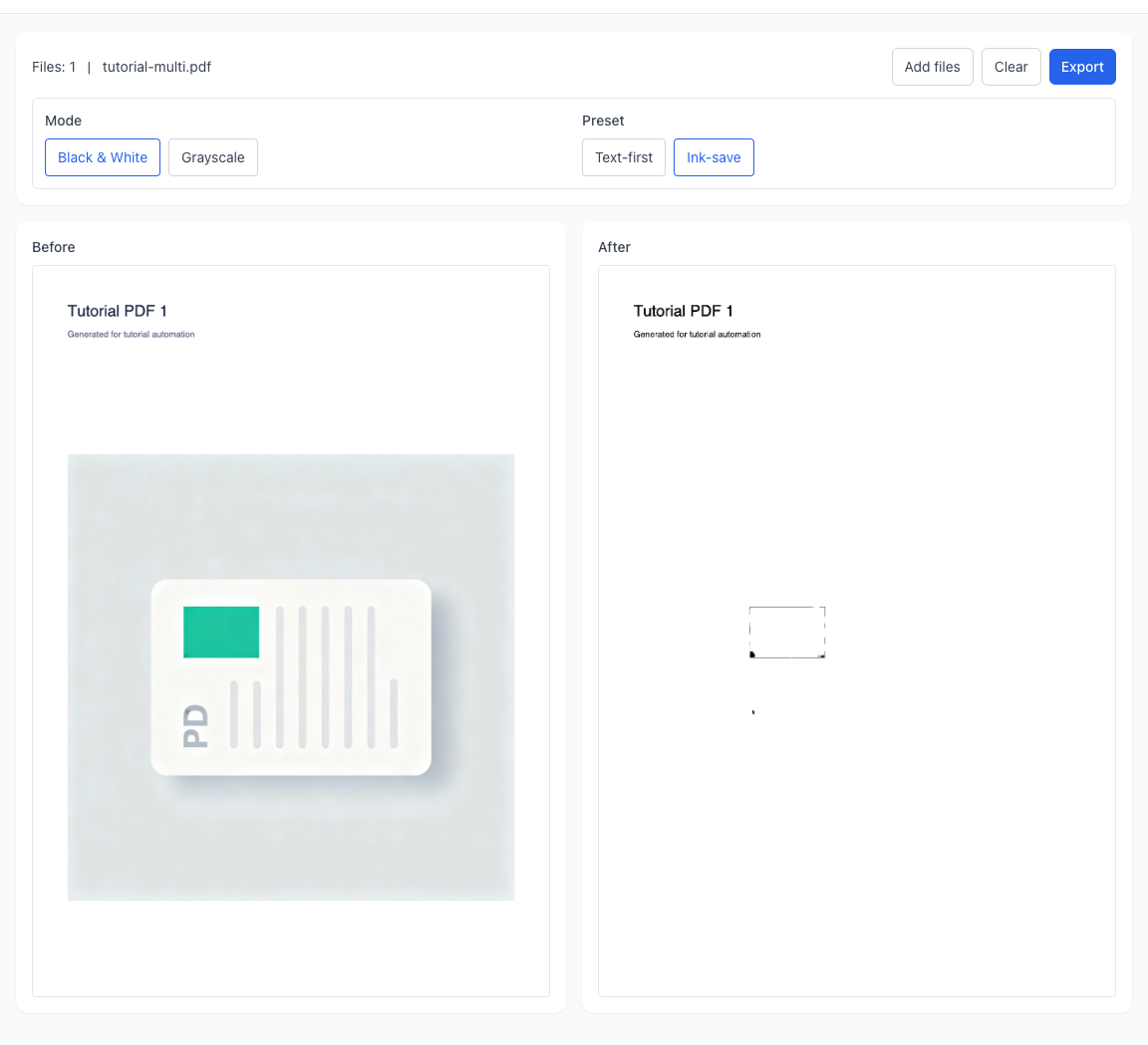
A single source file exports as PDF for immediate submission. Multiple source files export as ZIP for simpler handoff and archive management with source-based naming.
Another PDF workflow tool for continuous document processing.
Another PDF workflow tool for continuous document processing.
Another PDF workflow tool for continuous document processing.
Another PDF workflow tool for continuous document processing.